How to Integrate Giscus Comments in Next.js: A Complete Guide
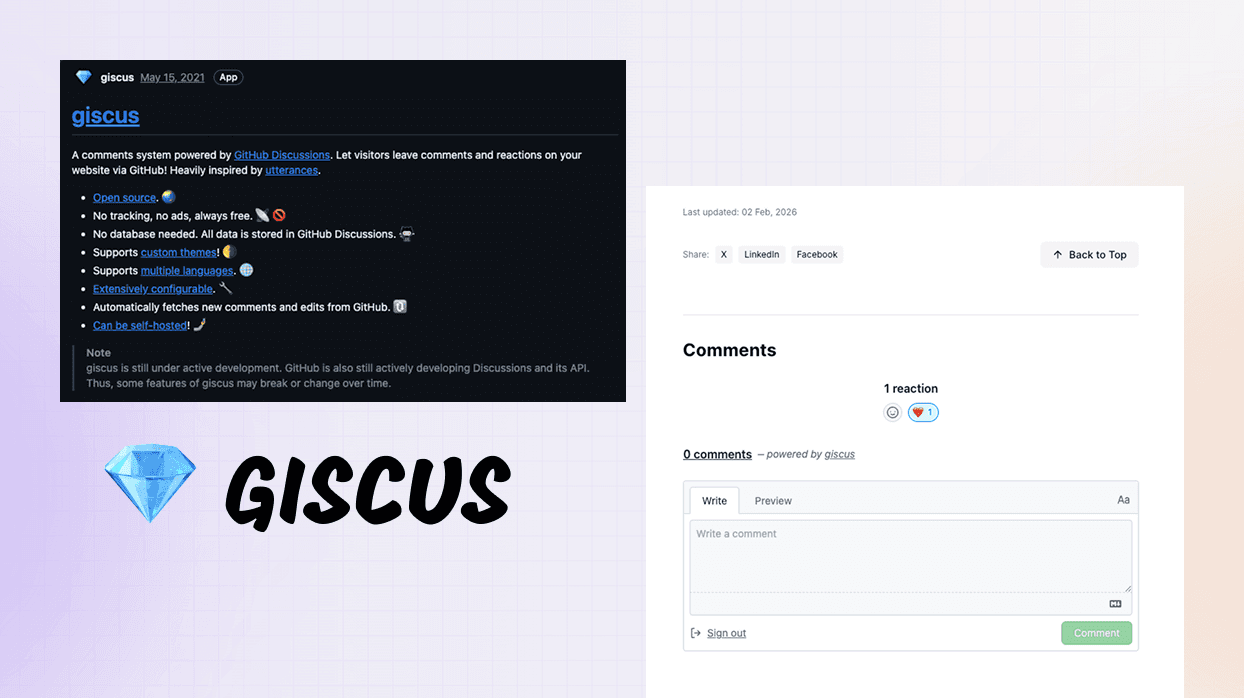
If you're building a blog with Next.js and looking for a modern, privacy-friendly comment system, Giscus is an excellent choice. Built on GitHub Discussions, it's free, open-source, and doesn't track your users. In this guide, I'll show you exactly how I integrated Giscus into my portfolio blog.
Why Giscus?
Before diving into the implementation, let's understand why Giscus stands out:
GitHub-powered
Uses GitHub Discussions as the backend
Zero tracking
No ads, no tracking, completely privacy-friendly
Free forever
Built on GitHub's free tier
Markdown support
Full Markdown and code syntax highlighting
Reactions
GitHub-style reactions for comments
Theme support
Matches your site's light/dark mode
SEO-friendly
Comments are indexed by search engines
Prerequisites
Before starting, make sure you have:
- A Next.js project (App Router or Pages Router)
- A GitHub repository for your project
- GitHub Discussions enabled on your repository
Step 1: Enable GitHub Discussions
First, enable Discussions on your repository:
- Go to your repository on GitHub
- Click on Settings
- Scroll down to the Features section
- Check the Discussions checkbox
- Click Set up discussions
- Create an initial discussion post (optional but recommended)
Step 2: Install the Giscus GitHub App
Install the Giscus app to allow it to interact with your repository:
- Visit github.com/apps/giscus
- Click Install
- Select your repository
- Grant the necessary permissions
Step 3: Get Your Giscus Configuration
Now, get your unique configuration values:
- Visit giscus.app
- Enter your repository in the format:
username/repo-name - Select your preferred category (I recommend "General" or "Announcements")
- Choose your mapping (pathname is recommended)
- Copy the generated
data-repo-idanddata-category-idvalues
Step 4: Create the Giscus Component
Create a reusable Giscus component with theme support:
// src/components/giscus.tsx
"use client";

import { useEffect, useRef } from "react";
import { useTheme } from "next-themes";

interface GiscusProps {
  repo: string;
  repoId: string;
  category: string;
  categoryId: string;
  mapping?: string;
  reactionsEnabled?: string;
  emitMetadata?: string;
  inputPosition?: "top" | "bottom";
  lang?: string;
  loading?: "lazy" | "eager";
}

export function Giscus({
  repo,
  repoId,
  category,
  categoryId,
  mapping = "pathname",
  reactionsEnabled = "1",
  emitMetadata = "0",
  inputPosition = "bottom",
  lang = "en",
  loading = "lazy",
}: GiscusProps) {
  const ref = useRef<HTMLDivElement>(null);
  const { resolvedTheme } = useTheme();

  const theme = resolvedTheme === "dark" ? "dark" : "light";

  useEffect(() => {
    if (!ref.current || ref.current.hasChildNodes()) return;

    const script = document.createElement("script");
    script.src = "https://giscus.app/client.js";
    script.setAttribute("data-repo", repo);
    script.setAttribute("data-repo-id", repoId);
    script.setAttribute("data-category", category);
    script.setAttribute("data-category-id", categoryId);
    script.setAttribute("data-mapping", mapping);
    script.setAttribute("data-strict", "0");
    script.setAttribute("data-reactions-enabled", reactionsEnabled);
    script.setAttribute("data-emit-metadata", emitMetadata);
    script.setAttribute("data-input-position", inputPosition);
    script.setAttribute("data-theme", theme);
    script.setAttribute("data-lang", lang);
    script.setAttribute("data-loading", loading);
    script.crossOrigin = "anonymous";
    script.async = true;

    ref.current.appendChild(script);
  }, [
    repo,
    repoId,
    category,
    categoryId,
    mapping,
    reactionsEnabled,
    emitMetadata,
    inputPosition,
    lang,
    loading,
    theme,
  ]);

  // Update theme dynamically when user switches
  useEffect(() => {
    const iframe = document.querySelector<HTMLIFrameElement>(
      "iframe.giscus-frame",
    );
    if (!iframe) return;

    iframe.contentWindow?.postMessage(
      { giscus: { setConfig: { theme } } },
      "https://giscus.app",
    );
  }, [theme]);

  return <div ref={ref} />;
}
Key Features of This Component:
- Client-side rendering: Uses
"use client"directive - Theme synchronization: Automatically matches your site's theme
- Dynamic theme updates: Updates when users switch themes
- TypeScript support: Fully typed for better DX
Step 5: Store Configuration
Create a configuration file to centralize your Giscus settings:
// src/config/config.json
{
  "giscus": {
    "enable": true,
    "repo": "username/repo-name",
    "repoId": "YOUR_REPO_ID",
    "category": "General",
    "categoryId": "YOUR_CATEGORY_ID",
    "mapping": "pathname",
    "reactionsEnabled": "1",
    "emitMetadata": "0",
    "inputPosition": "bottom",
    "lang": "en",
    "loading": "lazy"
  }
}
Replace YOUR_REPO_ID and YOUR_CATEGORY_ID with the values from giscus.app.
Step 6: Add to Your Blog Posts
Now integrate Giscus into your blog post template:
// src/app/blog/[slug]/page.tsx
import { Giscus } from "@/components/giscus";
import config from "@/config/config.json";

export default async function BlogPost({
  params,
}: {
  params: { slug: string };
}) {
  // ... your existing code

  return (
    <article>
      {/* Your blog content */}

      {/* Comments Section */}
      {config.giscus.enable && (
        <div className="mt-12 md:mt-16 pt-8 border-t border-border">
          <h2 className="text-2xl font-bold mb-6">Comments</h2>
          <Giscus
            repo={config.giscus.repo}
            repoId={config.giscus.repoId}
            category={config.giscus.category}
            categoryId={config.giscus.categoryId}
            mapping={config.giscus.mapping}
            reactionsEnabled={config.giscus.reactionsEnabled}
            emitMetadata={config.giscus.emitMetadata}
            inputPosition={config.giscus.inputPosition as "top" | "bottom"}
            lang={config.giscus.lang}
            loading={config.giscus.loading as "lazy" | "eager"}
          />
        </div>
      )}
    </article>
  );
}
Step 7: Add Styling (Optional)
Add some custom styling to make the comments section blend with your design:
/* Global styles or component CSS */
.giscus-frame {
  width: 100%;
  border: none;
  color-scheme: auto;
}

/* Adjust spacing */
.giscus {
  margin-top: 2rem;
}
Configuration Options Explained
Here’s what each configuration option means:
mapping
Determines how comments are mapped to pages.
pathname— Based on URL path (recommended for most blogs)url— Based on full URLtitle— Based on page titleog:title— Based on Open Graph title
inputPosition
Controls where the comment input box appears.
bottom— Below existing comments (default)top— Above existing comments
reactionsEnabled
Enables or disables GitHub reactions (👍, 😄, etc.).
loading
Controls when comments are loaded.
lazy— Load when scrolled into view (better performance)eager— Load immediately
Best Practices
1. Use Lazy Loading
Set loading: "lazy" to improve initial page load performance. Comments will load when users scroll to them.
2. Choose the Right Mapping
For blogs, pathname mapping is ideal. It keeps comments consistent even if you change page titles or URLs.
3. Enable Reactions
Reactions encourage engagement without requiring full comments. Enable them with reactionsEnabled: "1".
4. Create Discussion Categories
Organize discussions by creating specific categories:
- "Blog Comments" for blog posts
- "General" for site-wide discussions
- "Q&A" for questions
5. Moderate Effectively
As the repository owner, you can:
- Edit or delete comments
- Lock discussions to prevent new comments
- Mark comments as answers (in Q&A categories)
- Hide abusive content
Troubleshooting
Solution: Install the Giscus GitHub app at github.com/apps/giscus and grant it access to your repository.
Checklist:
- ✅ GitHub Discussions is enabled
- ✅ Giscus app is installed
- ✅ Repository is public
- ✅
repoIdandcategoryIdare correct
Solution: Ensure your Giscus component is a client component ("use client") and uses useTheme() from next-themes.
Solution: Use pathname mapping instead of title or url. Check that your paths are unique.
Advanced: Custom Themes
You can create custom Giscus themes to match your brand:
- Fork the giscus-component repository
- Create a new CSS theme file
- Submit a PR or use it directly with
data-themeattribute
For now, the built-in light and dark themes work great for most sites.
Performance Considerations
Giscus is lightweight, but here are tips to optimize further:
- Use lazy loading: Defers loading until needed
- Defer non-critical scripts: Load Giscus after main content
- Monitor bundle size: Keep your component minimal
- Cache GitHub API responses: GitHub handles this for you
Conclusion
Giscus is an excellent choice for adding comments to your Next.js blog. It's:
- Free and privacy-friendly
- Easy to integrate
- Powerful with GitHub's features
- Theme-aware and accessible
The best part? Your readers can comment using their GitHub accounts, and all discussions are stored in your repository's Discussions tab.
Have questions about this integration? Drop a comment below using the Giscus system we just set up! 🎉
Resources
Found this tutorial helpful? Share it with others who might benefit!